
Price Stand app
This page is for people testing a price stand. The app does nothing on its own — it only sets up the stand hardware. The stand is not on sale yet; if you want one, join the waitlist and you will get one email when it is ready.
This is the app that sets your stand up, puts cards on it and changes how it looks. Download it on the phone, not on a computer.
On an iPhone? There is no app yet. Everything the app does, the stand also serves as a web page: join the same Wi-Fi as the stand and open http://tcg-stand.local in Safari.
Installing it
- Tap the download button above, in Chrome on the phone.
- Chrome warns you. "This type of file can harm your device" is what Android says about any app that did not come from the Play Store. Tap Download anyway.
- Open the file from the download bar, or from Files › Downloads.
- Allow the install. Android asks whether Chrome may install apps. Tap Settings, turn on Allow from this source, then press back. You only do this once.
- Tap Install, then Open. If Play Protect puts up a warning, choose Install anyway — it says that about every app it has not seen before.
Setting the stand up
- Turn any VPN off on the phone. A VPN sends everything the phone does out through the internet, so it cannot see a device sitting on your own Wi-Fi. With one running the app will not find the stand and the setup page will not load. Turn it back on afterwards if you want — it only has to be off while you are setting the stand up and whenever you open the app to change something.
- Plug the stand in with the USB-C cable. The TCG TRACKER animation plays, then it asks for Wi-Fi.
- Join the stand's own network. In the phone's Wi-Fi settings, connect to TCG-Tracker-XXXX — the four characters are on the stand's screen.
- Open the app. It finds the stand and asks which Wi-Fi it should join. Pick yours and type the password.
- Put the phone back on your own Wi-Fi. The stand restarts on your network and the app finds it again by itself.
- Add a card under Cards. It goes straight on the screen.
Keep this page. Updates go here too — download the new file and install it over the top. Nothing on the stand is lost when the app updates, and nothing is lost when the stand itself updates either.
The buttons underneath
There are no buttons on the outside. Turn the stand over and you will find three, left of centre near the front edge. The labels moulded into the plastic are easy to miss, so here they are:
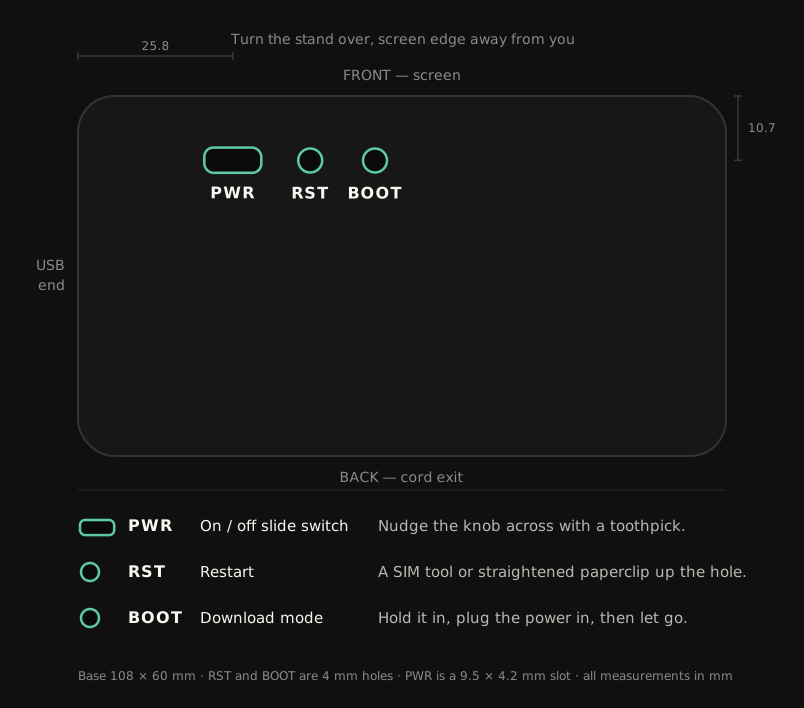
You will not need RST or BOOT in normal use. The stand turns on when you plug it in.
If something goes wrong
The app cannot find the stand
A VPN is the usual culprit. Check the phone first: a VPN, a private relay, or an ad-blocker that works like one will all hide the stand, because they route the phone away from your own network. Turn it off and try again.
Otherwise both have to be on the same Wi-Fi, and the stand only speaks 2.4 GHz. Most routers keep 2.4 and 5 GHz under one name, but if yours splits them into two, put the phone on the 2.4 GHz one while you set up. You can also type the stand's address in by hand — it shows on screen when it starts.
"App not installed", or it will not install over the old one
That happens when the new file was signed with a different key from the one already on the phone. Uninstall the old TCG Stand app and install this one fresh. Your cards and settings live on the stand, not in the app, so nothing is lost.
Play Protect keeps warning me
It flags anything that has not been through the Play Store, which this beta has not. It is a warning about where the file came from, not about what is in it.
The screen is blank or stuck
Press the RST button on the back of the board. If it is still dark, try another USB-C cable — plenty of them only carry power and no data.
Something else
Email [email protected], or just tell me directly. Finding this sort of thing is what the beta is for.